dig
INTRO
digcommand stands forDomain Information Groper- It is used for retrieving information about DNS name servers.
- It is used for verifying and troubleshooting DNS problems and to perform DNS lookups.
- Previous tools used instead of
dignslookuphost
digDomain Information Groper, and it collects data about Domain Name Servers.- It is helpful for troubleshooting DNS problems,
DIG syntax
dig [server] [name] [type]
- [server] – The hostname or IP address.
- [name] – The DNS Name.
- [type] – The type of DNS record to retrieve.
Options
+short--> To check the I.P address from Domain-x--> To work with the I.P address+noall +answer--> To check the answer section
Working with dig command
Below are the some examples how to use dig command.
DNS Lookup
command: dig bajaj-dev.oriserve.com
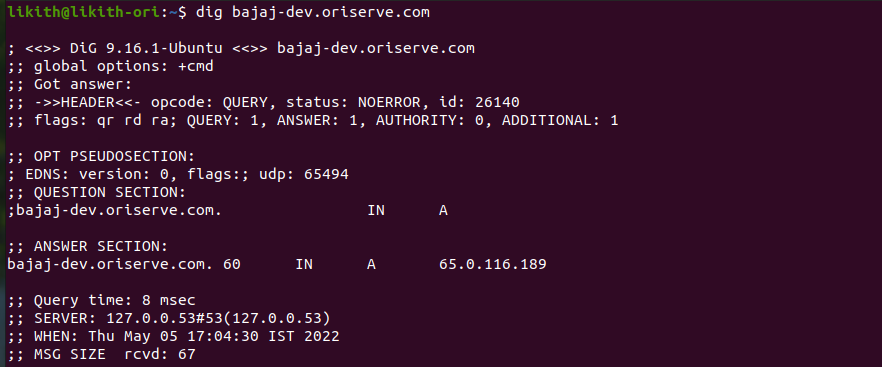
- This command causes dig to look up the “A” record for the domain name
twitter.com.- A record refers to IPV4 IP
- Similarly, if record type is set as “AAAA”, this would return IPV6 IP.
I.P address
- To display the I.P address, associated with the Domain
commad : dig bajaj-dev.oriserve.com +short

Reverse DNS Lookup
- To display the domain nameby it's IP address.
command : dig -x 172.217.14.238

Detailed Answers
- Sometimes we want to view the answers section in details.
- For this case, you can stop displaying all the section using +noall option and query the answers section only by using +answer option with the dig command.
command : dig bajaj-dev.oriserve.com +noall +answer

Multiple DNS
- We can investigate multiple DNS using a file.
- Create a file
servers.txtand add the required domain names as content.
command : dig -f servers.txt +short
