Setup Monitoring on Server
The docs cover installation of node exporter on a server & add monitoring dashboard on a Grafana.
Introduction
- We have setup prometheus grafana and node exporter for monitoring our infra.
- Prometheus is an open-source system for monitoring and alerting tool.
- Grafana is an open-source platform for data visualization, monitoring and analysis.
- Node Exporter is an exporter that collects mertrics from servers, such as CPU, Disk, Memory statistics.
Installation Steps
Steps to Installtion of node exporter
- Setup script will be found on s3 in their respective brand services folder.
- Here the s3 path:
S3 Path : Bucketname/Brandname/AppTier/Environment/Development/Monitoring/ - All files paths are same as server path inside monitoring.
- We have three folders inside here which contains files:
- Node exporter service file
/etc/systemd/system/node_exporter.service - All Services heartbeat scripts
/heartbeat/* - Node exporter prom files
/node_exporter_files/heartbeat.prom
- Node exporter service file
Bash script to install node exporter
#!/bin/bash
wget https://github.com/prometheus/node_exporter/releases/download/v1.1.2/node_exporter-1.1.2.linux-amd64.tar.gz
tar -xf node_exporter-1.1.2.linux-amd64.tar.gz
sudo mv node_exporter-1.1.2.linux-amd64/node_exporter /usr/local/bin
rm -r node_exporter-1.1.2.linux-amd64*
sudo useradd -rs /bin/false node_exporter

###Download service file for node exporter from s3 and copy in location
aws s3 cp s3://BucketName/ProjectName/AppTier/Environment/foldername/Monitoring/etc/systemd/system/node_exporter.service /etc/systemd/system/

###Starting the service
sudo systemctl daemon-reload
sudo systemctl enable node_exporter
sudo systemctl start node_exporter

####Create node exporter files dir
sudo mkdir /node_exporter_files
aws s3 cp s3://BucketName/ProjectName/AppTier/Environment/foldername/Monitoring/heartbeat/* /heartbeat/
sudo chmod -R 755 /heartbeat/*
aws s3 cp s3://BucketName/ProjectName/AppTier/Environment/foldername/Monitoring/node_exporter_files/heartbeat.prom /node_exporter_files/
sudo chmod +x /node_exporter_files/heartbeat.promAfter that Copy the shell and paste on the server with name setup_nodexporter.sh & execute, Below are the steps:
- SSH into the server
- sudo vim setup_nodexporter.sh and paste content here
- Update the shell with changes:
- BucketName
- ProjectName
- foldername
- Execute with command
sudo sh setup_nodexporter.sh - Check and verify all things once.
- Update server sg with port 9100 & source with prometheus security group.
Login into the grafana with URL:
Open any brand dashboard folder, there are 2 type of dashboard
- Server Graphs. e.g CPU Disk MEM
- Services heartbeat Graphs. e.g OCS, Scheduler, Users
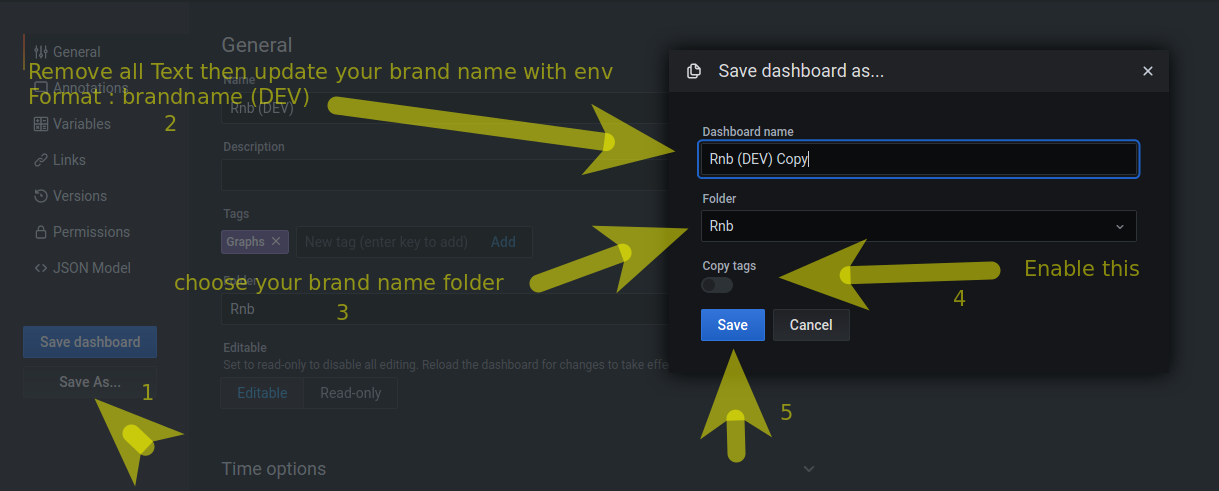
You need to do copy of both dashboards to your brandname with Save As option it will create a duplicate copy of dashboard.
Before copying the dashboard create a new folder with new brandname.
Go to dashboard settings from upper right corner and you will see 2 options Save dashboard & Save As in left corner.
Copy the dash by using
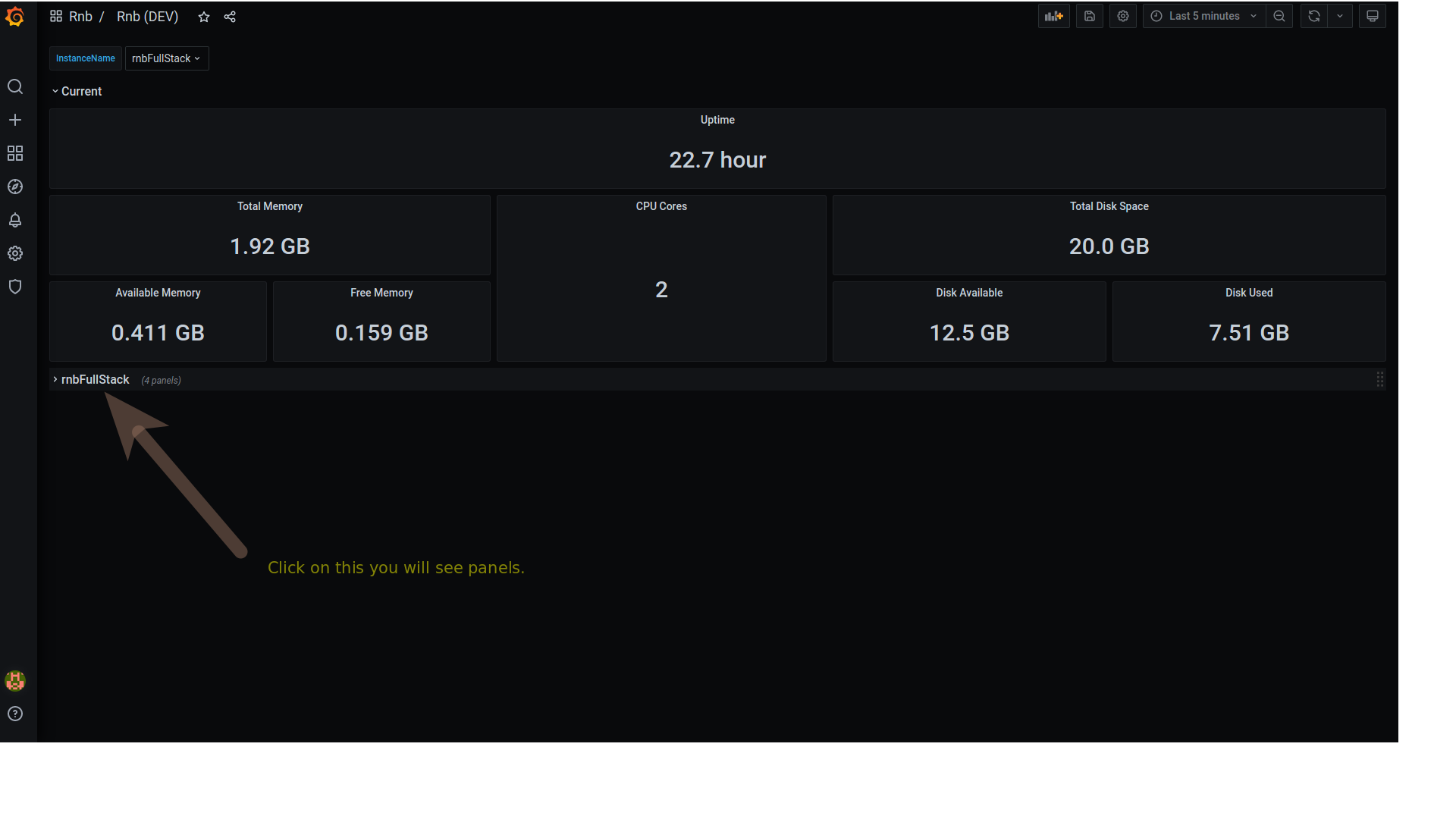
Save Asoption then change your brandname and choose their respective folder and save it.You will see after saving the dash it will create a copy of dash with your brandname in your folder.
After that you need to change the settings:
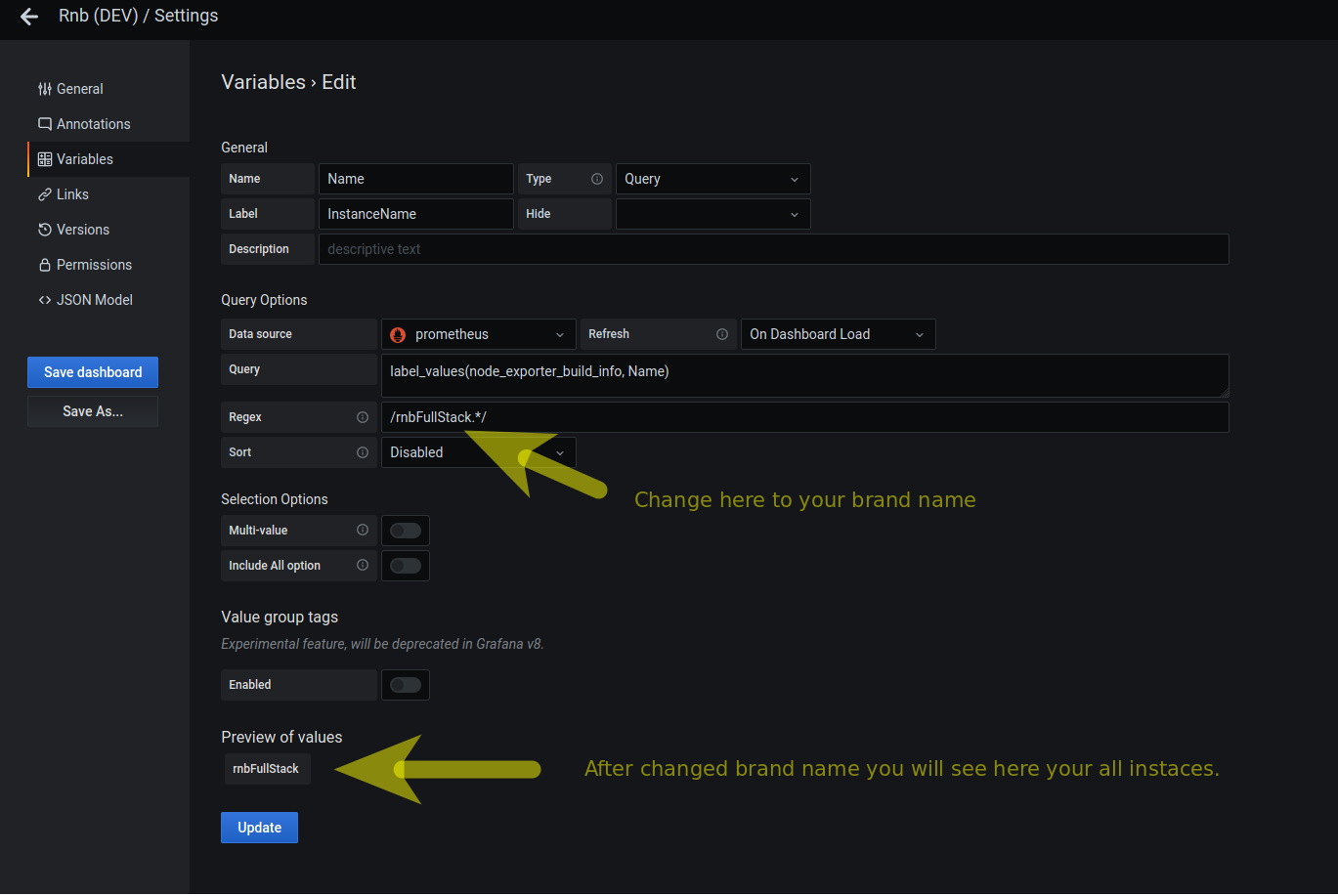
- Go to dashboard settings from upper right corner then click on the variables from left corner.
- Edit the variable by click on it.
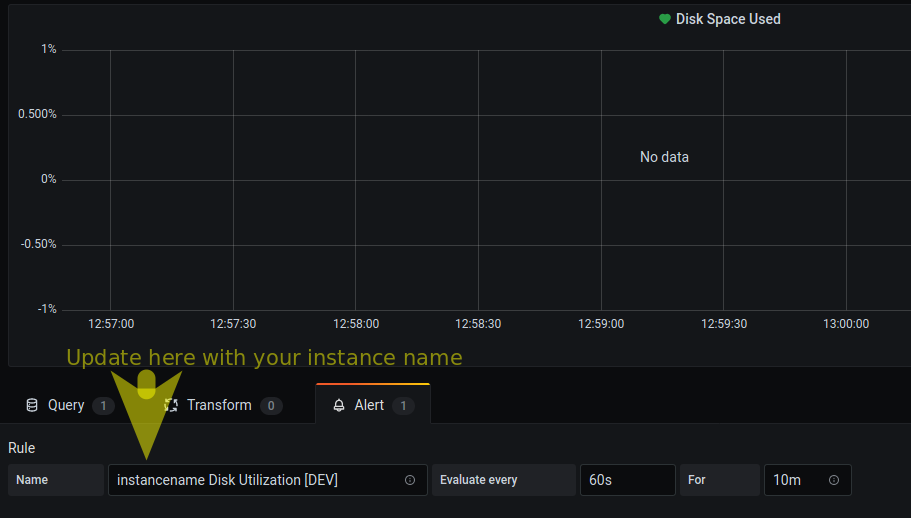
- Change the Regex value with your brand name and below you will se your instances then click on the update & go to the back on the dash. below images for your ref:
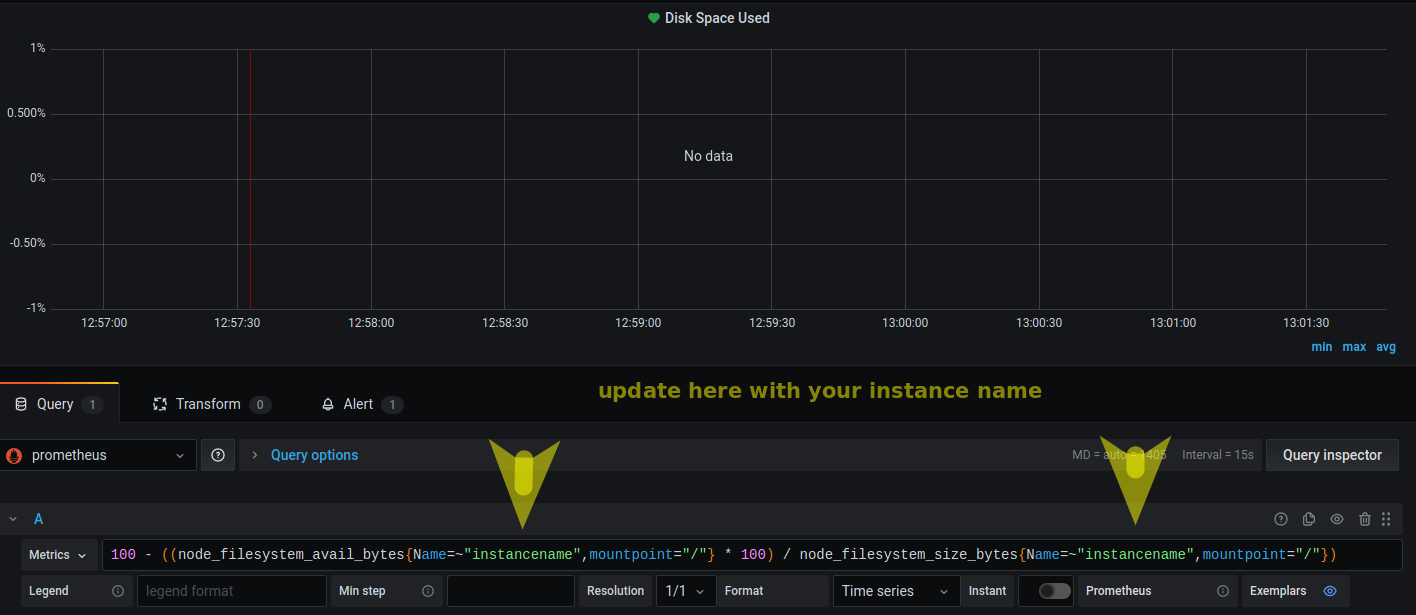
Now Edit the panels and change name value with your instance name in query and in Alert section.
After updated all panels then save the dashboard by click on save dashboard option in upper right corner.
Same you need to do with heartbeat graphs copy then edit the panels and update with your instance name.
Grafana Queries
Here are the queries which we use in grafana to calculate metrics. you can check inside the graphs in dashboard as well for the same.
Note: These queries are tested with stack versions
- Node_exporter: 1.1.2
- Grafana: v7.5.5
- Prometheus: 2.26.0
To calculate avg. CPU Utilization (%)
100 - (avg by (instance,Name)(irate(node_cpu_seconds_total{job="Nodes_metrics",Name="instancename",mode="idle"}[5m])) * 100)To calculate avg. Memory Utilization (%)
((node_memory_MemTotal_bytes{Name=~"instancename"}) - (node_memory_MemFree_bytes{Name=~"instancename"} + node_memory_Buffers_bytes{Name=~"instancename"} + node_memory_Cached_bytes{Name=~"instancename"} + node_memory_Slab_bytes{Name=~"instancename"})) * 100 / (node_memory_MemTotal_bytes{Name=~"instancename"})To calculate avg. Memory Utilization (GB)
(node_memory_MemTotal_bytes{Name=~"instancename"})/1024/1024/1024 - (node_memory_MemFree_bytes{Name=~"instancename"} + node_memory_Buffers_bytes{Name=~"instancename"} + node_memory_Cached_bytes{Name=~"instancename"} + node_memory_Slab_bytes{Name=~"instancename"})/1024/1024/1024To calculate avg. Disk Utilization (%)
100 - ((node_filesystem_avail_bytes{Name=~"instancename",mountpoint='/'} * 100) / node_filesystem_size_bytes{Name=~"instancename",mountpoint='/'})To calcualte read IOPS
rate(node_disk_reads_completed_total{Name="instancename"}[1m])To calculate write IOPS
rate(node_disk_writes_completed_total{Name="instancename"}[1m])To calculate Network IN
rate(node_network_receive_bytes_total{Name="instancename",device="ens5"}[5m])/1024To calculate Network OUT
rate(node_network_transmit_bytes_total{Name=~"instancename",device="ens5"}[1m])/1024