Access Review
Get a list of relieved employees from HR ,then take action on reviews.Follow the below process
- Create a google sheet with all type of user access inside this Location.
- First create a folder here and copy the sample sheet from the sample folder and move the copied sheet in your folder.Follow the below naming convention for folder and sheet.
- Folder Name: Date_TaskID(20042023_DO-1011)
- Sheet Name: accessReviews_Date_TaskID(accessReviews20042023_DO-1011)
- In this sheet there are 5 subsheets for all type of reviews as shown below.
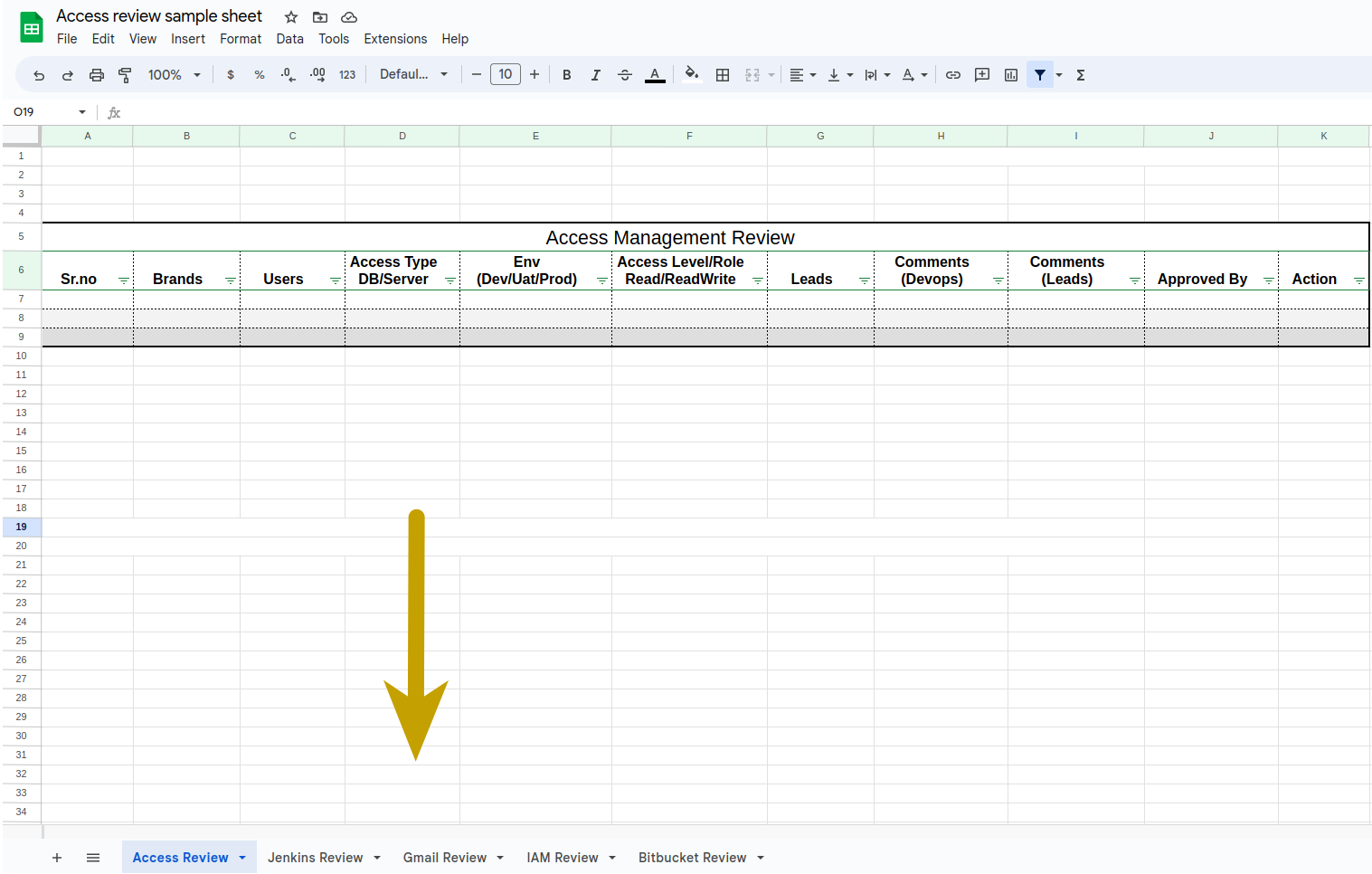
- Also, you can take a refrence from an existing review folders.
- Now perform all type of reviews and mention all the users with their access in their subsheet.
Monthly IAM Review
Check for unused roles and users from the IAM console. Individual user permissions needs to be verified and if required modified following the principal of least privilege. This will be triggered on a monthly basis .via JIRA automated task. The task will be assigned to the lead of DEV-OPS(DO) project.
Open the IAM console and review all the users and add in iam review section in sheet.
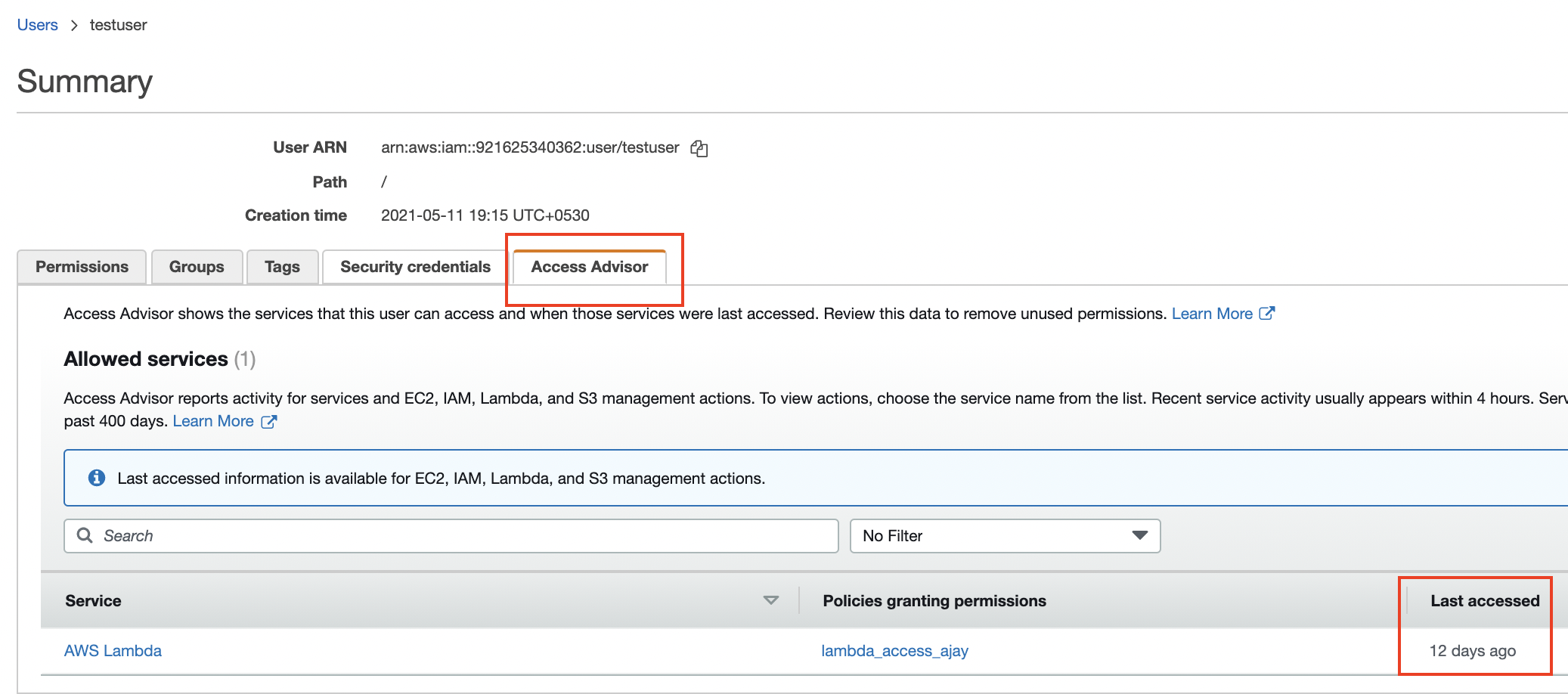
Go to users and check the Access Advisor tab.
Follow the process for all type of users mentioned as below.
Based on the reviews from leads then take action accordingly:
Normal users:
- Check brand specific access for all users:
- If users are not working on any brand from given brands access
- Then remove the user from that brand group.
- If users are working on given brands and there is no change in permissions.
- Then no action required.
- If users are not working on any brand from given brands access
- Check the Last Accessed column for the latest activity:
- If Last Accessed is older than 2 month
- If access isn't needed now or in the future:
- Add the user in the DisabledUsersRoles group also inform the user.
- If access isn't needed now or in the future:
- If Last Accessed is older than 3 month..
- Add the user in the DisabledUsersRoles group
- Inform the user that the access has been revoked. If they need it in the future, they need to request again.
- If Last Accessed is older than 2 month
- If the user has left the organization, remove the user.
- Check brand specific access for all users:
Admin users:
- Follow the same steps as normal users. But before that we need to get approval from devops lead for any further action.
Inactive/dormant users:
- Check brand specific access for all users:
- If users are not working on any brand from given brands access
- Then remove the user from that brand group.
- Also remove the user as well.
- If users are still needed the access they need to request again.
- If users are not working on any brand from given brands access
- Check brand specific access for all users:
IAM Access Key Rotation
All existing user access keys needs to be review and rotated every 90 days. This will be triggered .via JIRA automated task. The task will be assigned to the lead of DEV-OPS(DO) project. Task should be further divided into DEV-OPS team. Each task should be updated with comments and action taken(if any). Furthermore, subtasks for making a key inactive and finally roving old keys should be created after the task is done.
- Create a new task for the list of users you'll be taking action on.
- Open the IAM console
- Go to users
- Check the Access key age column for each user.
- Can be safely ignored if access key age is under 90 days.
- When access key age is greater than 90 days:
- If the user is an individual
- Create a new access key and share the details with the user
- Open user profile, navigate to the Security credentials tab.
- Under Access keys, click Create access key.
- Ask them to update their local creds/env and verify access once.
- Create a new access key and share the details with the user
- If the user is used in programatic calls, either in application of any onPrem server.
- Create a new access key and find out where the key is being used.
- You can find brief about the key usage in Tags tab.
- You can also check the Access Advisor tab to get info on which service used the key and when.
- Once you've found the usage of key, update the respective credentials.
- Create a new access key and find out where the key is being used.
- Create a sub-task, make-inactive enlisting all the keys you took action on.
- Review the keys once a day, note the date in Last used column.

- If it's changing that means, key is still being used somewhere find it out.
- If not, make sure the date in Last used column for the previous key is at least 2 weeks old. Once it is, click Make inactive, to well make the key inactive.
- Review the keys once a day, note the date in Last used column.
- Create a sub-task, remove-old-keys enlisting all the keys you made inactive.
- Check after 1 week, if no issue has been notices or reported, remove the key.
- If the user is an individual

NOTE: Make sure no access key's age is more than 180 days.
Access Management Review
Check for unnecessary or unauthorized access of an employees. All existing members access needs to be review in accessmanagement repository. During the review, Please check of employees for change in position and employee termination.
Dev/Uat:
- Do a monthly review of access rights for all of an organization's employees with co-ordination of HR/Lead.
- In access review check access rights and privileges for db and servers.
- Check DB and server access for all users on each and every brands in access management bitbucket repository.
To check Db access for all users you need to follow following steps:
- Go to the accessmanagement repository.
- Run below command to fetch all users:
jq '.env[] | select(.dbName=="db_name") | select(.userName != "dbOwner" and .userName != "aiClusteringUser" and .userName != "dbOwner2" and .userName != "dbOwner" and .userName != "reader") | .userName + ":" + .role' projects/brand_name/dbUsers/db_users.json | jq -s 'unique[]' | xargs -I {} echo {} |cut -d ':' -f 1
- Run below command to fetch all corresponding roles:
jq '.env[] | select(.dbName=="db_name") | select(.userName != "dbOwner" and .userName != "aiClusteringUser" and .userName != "dbOwner2" and .userName != "dbOwner" and .userName != "reader") | .userName + ":" + .role' projects/brand_name/dbUsers/db_users.json | jq -s 'unique[]' | xargs -I {} echo {} |cut -d ':' -f 2
Note: Change below variables in command acc to your brand d.
- env : dev|uat|prod
- db_name
- brand_name
Server access:
- Check users file in each brands with below path.
projects/brands/userKeys/users
- Check users file in each brands with below path.
- Add all the details in the subsheet named as access review.
- If an employee recently changed their position, acquired new responsibilities then we will update access acc to their requirements.
- If an employee left the company then we will remove their keys and access from repo & respective brand folders.
Prod:
- We do not provide prod access to anyone, limited to devops team only.
NOTE: Make sure you have removed keys and access from repository and respective brand folders.
Bitbucket Repository Review
Check for unnecessary or outdated users and groups permissions. All existing members' access needs to be review. During the review, check user accounts of employees who recently changed their position or left the company.
- Do a monthly review of access rights for all of an organization's employees with co-ordination of respective projects leads.
- Go to bitbucket users and groups console then check unnecessary or outdated access rights and privileges.Links to check all users and group access are given below.
- Add all the user access details in the subsheet named as bitbucket review in the main sheet.
- For admin users, take approval from devops lead for any action. Admin users are maintained in admin_users file. path as given below.
accessmanagement/tools/aws/admin_usersin accessmanagement repostory.
- If an employee recently changed their position, acquired new responsibilities then we will update access acc to their requirements.
- If an employee left the company then we will delete their account from bitbucket.
Note: After performing all the reviews drop a mails with the sheet you have created to their respective teams & devops leads for approval then take action based on the reviews from leads of user access.